Arranging your workspace
Sprocket’s main window is split into panels: the Project panel on the left, the monitor in the middle, the Inspector on the right, and the timeline along the bottom. You can rearrange that space to suit the job — a big preview for reviewing a cut, a wide timeline for detailed trimming — and Sprocket remembers the arrangement for each project.
What’s in this guide
Section titled “What’s in this guide”- Move and resize the window
- Resize the panels
- Show or hide the side panels
- Go full screen
- Reset the layout
- Each project remembers its layout
- On macOS
- Related
Move and resize the window
Section titled “Move and resize the window”The strip across the top of the window — with the menus on the left and your project’s name in the middle — is the title bar.
- Move the window: drag any empty part of the title bar.
- Maximize or restore: double-click the title bar, or click the maximize button at the top-right. On Windows, hover over the maximize button to see the snap layouts, so you can tile Sprocket beside another window.
- Minimize or close: use the buttons at the top-right.
Resize the panels
Section titled “Resize the panels”Drag the thin dividers between panels to share out the space:
- The divider between the Project panel and the monitor sets the Project panel’s width.
- The divider between the monitor and the Inspector sets the Inspector’s width.
- The divider above the timeline sets how tall the timeline is.
Show or hide the side panels
Section titled “Show or hide the side panels”When you want the biggest possible preview and timeline, hide the side panels:
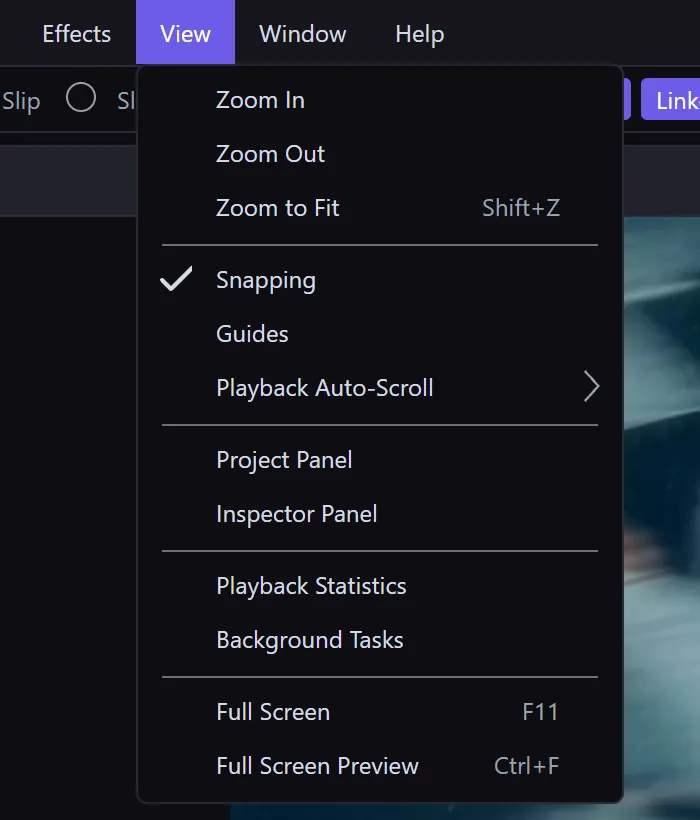
- Open the View menu.
- Click Project Panel or Inspector Panel. A check mark next to each one shows it’s visible; clicking it again brings the panel back.
With both panels hidden, the monitor and timeline stretch across the whole window:
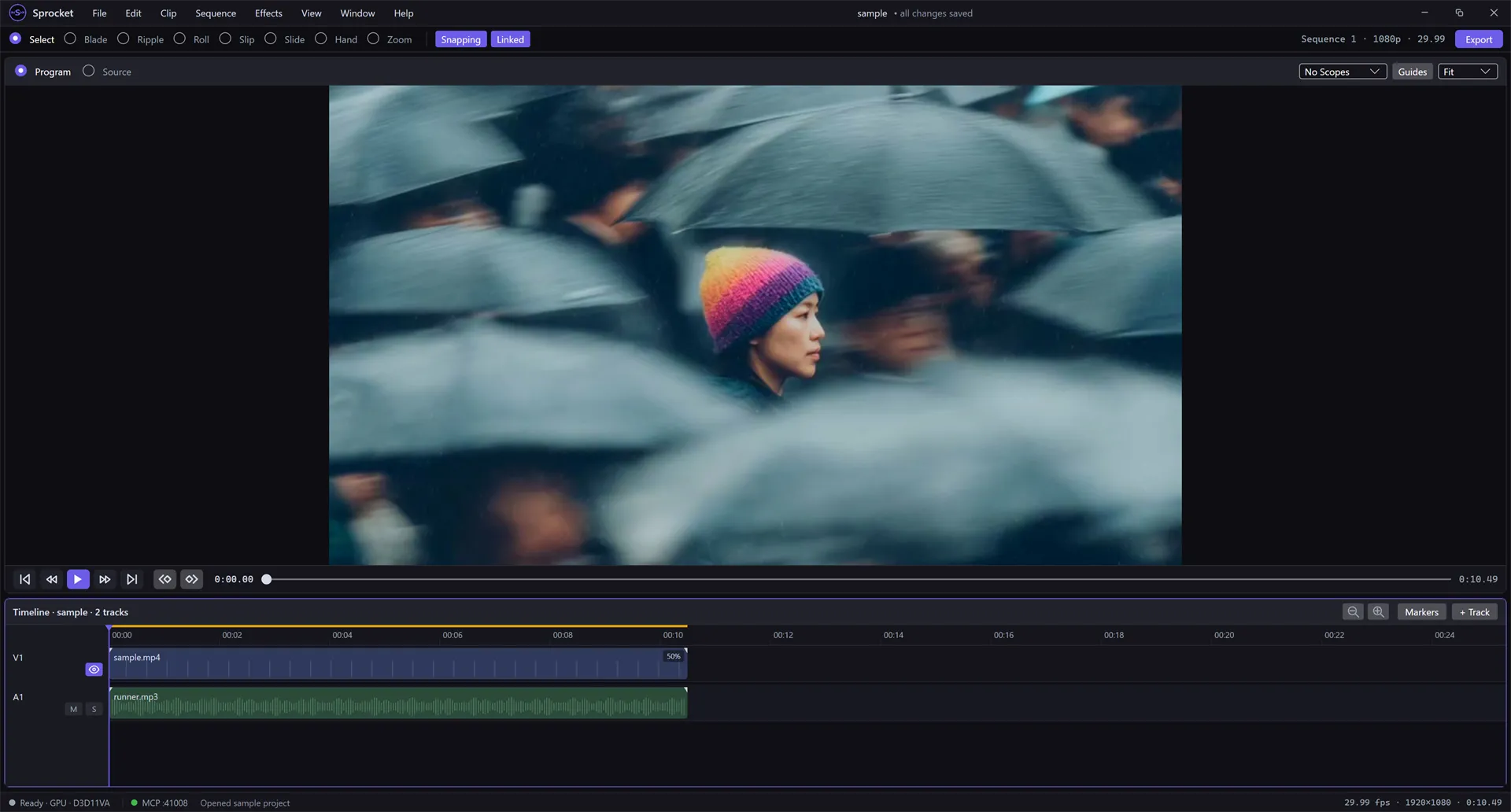
A hidden panel comes back at the same width it had before you hid it.
Tip: Hiding the Inspector doesn’t lose anything — your clip’s effects and settings are still there when you show it again.
Go full screen
Section titled “Go full screen”To give Sprocket your entire screen, choose View ▸ Full Screen or press
F11. The menus and title bar stay visible, so every command is still in
reach. To go back, press F11 or Esc, choose View ▸ Full Screen again,
or click the button at the top-right.
Sprocket always starts in a normal window, even if you quit while it was full screen.
Tip: If you only want to watch your video full screen, use View ▸ Full Screen Preview (
Ctrl+F) instead — it fills the screen with just the picture. See Full-screen preview.
Reset the layout
Section titled “Reset the layout”If you’ve dragged things into an arrangement you don’t like, or a panel seems to have gone missing, choose Window ▸ Reset Layout.
Sprocket puts every divider back to its default position and shows the Project panel and Inspector again. The status bar confirms with Layout reset. Your edit isn’t touched — only the arrangement of the screen changes.
Each project remembers its layout
Section titled “Each project remembers its layout”When you close a project and open it again later, Sprocket puts the screen back the way you left it for that project:
- the size of each panel, and whether the Project panel and Inspector were shown or hidden
- how far the timeline was zoomed in
- whether the Program or Source monitor was showing — and, for the Source monitor, which clip was in it
So you can keep one project set up for detailed trimming and another for reviewing, and each opens ready to go.
A few things to know:
- The layout is saved once the project has been saved to a file. A brand-new, never-saved project opens with the default layout.
- The layout is stored on your computer, not inside the project file. If you share a project with someone else, it opens with their layout, and yours is left alone.
- If the clip that was in the Source monitor has been removed from the project, the project opens on the Program monitor instead.
On macOS
Section titled “On macOS”Sprocket follows the Mac’s own conventions for its window:
- The menus (File through Help) are in the menu bar at the top of the
screen, not inside the window. About Sprocket and Preferences…
(
⌘,) are in the Sprocket menu. - Use the red, yellow, and green buttons at the top-left of the window to close, minimize, and go full screen.
- The Window menu also has Minimize (
⌘M) and Zoom, alongside Reset Layout. - For full screen, press
⌃⌘F, click the green button, or choose View ▸ Full Screen.F11works too, on keyboards where it isn’t a media key.
Related
Section titled “Related”- Getting started — a tour of what each panel is for
- Preview and monitors — Program vs. Source monitor, preview zoom, and full-screen preview
- Keyboard shortcuts — full-screen keys on every platform
- Projects and saving — saving the project a layout belongs to