AI control (MCP)
Sprocket can hand an AI assistant the controls: with AI control switched on, an AI client running on your computer — Claude Code, Claude Desktop, or any other app that speaks the open MCP (Model Context Protocol) standard — can look at your open project and edit it for you. You type “tighten the gaps in the first minute and add a title,” and the AI makes the edits on your timeline, using the same operations you would.
It’s off by default, only ever reachable from your own computer, and every
edit an AI makes lands in the same undo history as your own — one Ctrl+Z
puts things back.
What’s in this guide
Section titled “What’s in this guide”- Turn on AI control
- The status bar tells you when it’s on
- Connect an AI client
- Require a bearer token
- Edit by prompt
- AI edits are undoable
- Effect reference tags
- What AI can do: the tool reference
- Starting from the command line
Turn on AI control
Section titled “Turn on AI control”- Open Edit ▸ Preferences (
Ctrl+,) and scroll to the AI control (MCP) section. - Check Enable MCP server (loopback only).
- Leave the Port at its default (41008) unless another program on your computer already uses it. Any port from 1024 to 65535 works.
- Click OK.
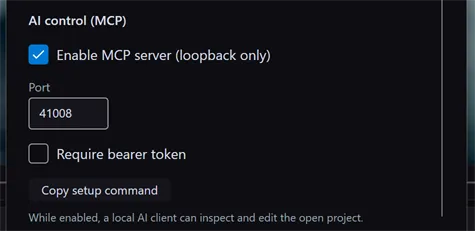
That’s the whole switch. While it’s on, Sprocket runs a small MCP server that AI clients on this computer can connect to. As the note under the checkbox says: while enabled, a local AI client can inspect and edit the open project — so leave it off when you’re not using it.
Loopback only means exactly that: the server accepts connections only
from your own computer (127.0.0.1). Nothing on your network — let alone the
internet — can reach it, and requests from web pages in your browser are
rejected too. If you want to shut out other programs on your own machine as
well, add a bearer token.
The status bar tells you when it’s on
Section titled “The status bar tells you when it’s on”Whenever the server is running, an indicator appears in the status bar at the bottom of the main window — a green dot and the port, next to the engine state:

- Green dot + “MCP :41008” — the server is listening on that port. Hover it for a reminder of what that means.
- Red dot + “MCP error” — you switched it on but the server couldn’t start (usually the port is taken by another program). Hover the indicator to see the exact error, then pick a different port in Preferences.
- No indicator — AI control is off.
You’ll never see Sprocket externally controllable without this indicator showing — it exists precisely so you always know.
Connect an AI client
Section titled “Connect an AI client”Sprocket writes the connection command for you:
-
In Edit ▸ Preferences ▸ AI control (MCP), click Copy setup command.
-
Paste it into a terminal. For Claude Code the copied command looks like:
claude mcp add --transport http sprocket http://127.0.0.1:41008/mcp -
Start a conversation and ask the AI something about your project — for example, “what clips are on my timeline?” If it answers with your actual clips, you’re connected.
Using a different AI client? Point it at the same address —
http://127.0.0.1:41008/mcp (with your port) — as an HTTP MCP server. If
you’ve turned on the bearer token, the client must also send it as an
Authorization: Bearer <token> header; the copied setup command includes
this automatically.
Tip: Connecting is a one-time setup per client. After that, just have Sprocket running with AI control on, and the client finds it.
Require a bearer token
Section titled “Require a bearer token”Loopback-only already keeps everything off your network. The optional token goes one step further and shuts out other programs on your own computer: with it on, a client that doesn’t present the token gets refused.
- In Edit ▸ Preferences ▸ AI control (MCP), check Require bearer token.
- A token appears in the field below — Sprocket generates it the first time you switch the requirement on, and keeps it thereafter.
- Click Copy setup command — the copied command now includes the token — and re-run it in your AI client so the client sends it.
Unchecking Require bearer token keeps the token stored, so switching it back on later doesn’t break clients you’ve already set up.
Edit by prompt
Section titled “Edit by prompt”Once connected, you direct the AI in plain language. It can see the project — media pool, tracks, clips, effects, markers, playhead — so you can refer to things the way you’d describe them to a person:
- “Cut the first three seconds off the opening clip and close the gap.”
- “Add a cross dissolve at every cut on the video track.”
- “Put a title that says ‘Day Two’ at the 30-second mark.”
- “Warm up the interview clip a little and bring the saturation down.”
- “Drop a marker at every point where the music changes.”
- “Export the whole sequence to
D:\renders\rough-cut.mp4.”
The AI edits through the same operations the app itself uses — trims respect linked audio/video, effects get the same value clamping, placements snap to the same rules — so nothing an AI does can produce an edit you couldn’t have made yourself. The preview updates as it works.
AI edits are undoable
Section titled “AI edits are undoable”Every edit an AI makes goes through the same undo history as your own
edits — one shared list, in order. Press Ctrl+Z (or Edit ▸ Undo) and
the last change is undone whether you made it or the AI did. The Edit menu
shows the name of each step, so you can see exactly what it’s about to undo.
An AI performing a multi-step job (say, building a title sequence) can group its steps so they undo as a single entry — you’ll see one named step in the Edit menu instead of a dozen. And since the AI can also use undo and redo, you can simply tell it “undo that” as well.
Effect reference tags
Section titled “Effect reference tags”Look at any effect header in the Inspector and you’ll see a small chip
next to its name — CO-1, TR-4, and so on:
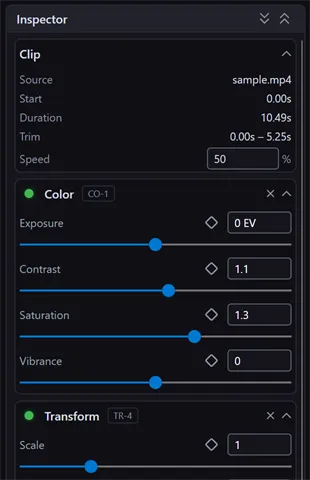
That’s the effect’s reference tag: a short code for the effect type plus a number that counts up across the project. It’s a stable handle — the tag sticks to that specific effect instance even if you reorder the stack, and a number is never reused within a project.
Tags exist mainly for AI control: they’re how an AI client addresses one specific effect without ambiguity. You can use them in prompts, too — “set TR-4’s scale to 1.5” or “remove CO-1 from the interview clip” — which is handy when a clip carries two effects of the same type.
What AI can do: the tool reference
Section titled “What AI can do: the tool reference”A connected client gets a set of about 70 tools — the complete surface, by area:
| Area | Tools |
|---|---|
| Inspect the project | get_project_state, list_media, list_clips, get_clip, get_playhead, list_effect_types, list_transition_types, list_generator_types, list_audio_chain |
| Playback & the playhead | seek, play, pause, stop, go_to_start, go_to_end, step_frames |
| Import & place media | import_media, add_clip_to_timeline |
| Edit clips | trim_clip, move_clip, split_clip, delete_clip, duplicate_clip, set_clip_fade, set_clip_speed, set_clip_gain, unlink_clip, link_clips |
| Ripple / roll / slide | ripple_trim, roll_edit, slide_clip, ripple_delete |
| Effects on clips | add_effect, set_effect_parameter, set_effect_parameter_keyframes, remove_effect, move_effect, copy_effects, set_effect_enabled |
| Audio chains (track / bus / master) | add_chain_effect, remove_chain_effect, set_chain_effect_parameter |
| Transitions | add_transition, remove_transition, set_transition |
| Markers | add_marker, remove_marker, update_marker |
| Tracks | add_track, remove_track |
| Titles & generators | add_generator_clip, set_generator_text, set_generator_parameter |
| Undo & grouping | undo, redo, begin_edit_group, end_edit_group, cancel_edit_group |
| Project files | open_project, close_project, new_project, save_project, save_project_as |
| Export | export_video, export_audio, get_export_status, cancel_export |
A few boundaries worth knowing:
- No dialogs. An AI can’t drive Sprocket’s windows — it can’t answer a file picker for you, so saving a brand-new untitled project needs one manual File ▸ Save As from you first.
- Unsaved changes are protected. Opening or creating another project fails while the current one has unsaved changes, unless the AI explicitly discards them — it can’t silently drop your work.
- One export at a time, same as in the app.
Starting from the command line
Section titled “Starting from the command line”Two launch flags start the server for this session only, without touching your saved preference:
Sprocket --mcp # start with AI control on, using your saved portSprocket --mcp-port 45000 # same, on a specific portThis is handy for scripted or occasional use: launch with the flag when you want AI control, and every normal launch stays off. A session started this way still honours your saved token setting, and the status-bar indicator shows as usual.
Tip: For scripted launches that need a token, put it in the
SPROCKET_MCP_TOKENenvironment variable rather than on the command line — other local processes can read a command line, but not your environment.
Related
Section titled “Related”- Getting started with Sprocket — the editing concepts an AI works with: clips, tracks, effects, markers.
- Editing on the timeline — what ripple, roll, slip, and slide mean when you ask an AI for them.
- Color grading — the grading effects an AI can apply and keyframe.