Working with log & camera footage
Some cameras record “log” footage — flat, low-contrast, and desaturated by design, to preserve as much dynamic range as possible for grading later. Before you grade it (or export it), log footage needs a conversion to a standard picture. Sprocket handles that with two effects you add to the clip like any other.
Once the footage is converted, you grade it with the usual tools — see Color grading.
What’s in this guide
Section titled “What’s in this guide”Log footage: Input Color Transform and ACES Filmic
Section titled “Log footage: Input Color Transform and ACES Filmic”Some cameras record “log” footage — flat, low-contrast, and desaturated by design, to preserve as much dynamic range as possible for grading later. Log footage needs a conversion before it looks right; these two effects handle that.
Input Color Transform converts a specific camera manufacturer’s log format to standard Rec.709 video. Pick your camera’s profile from the Source Profile list:
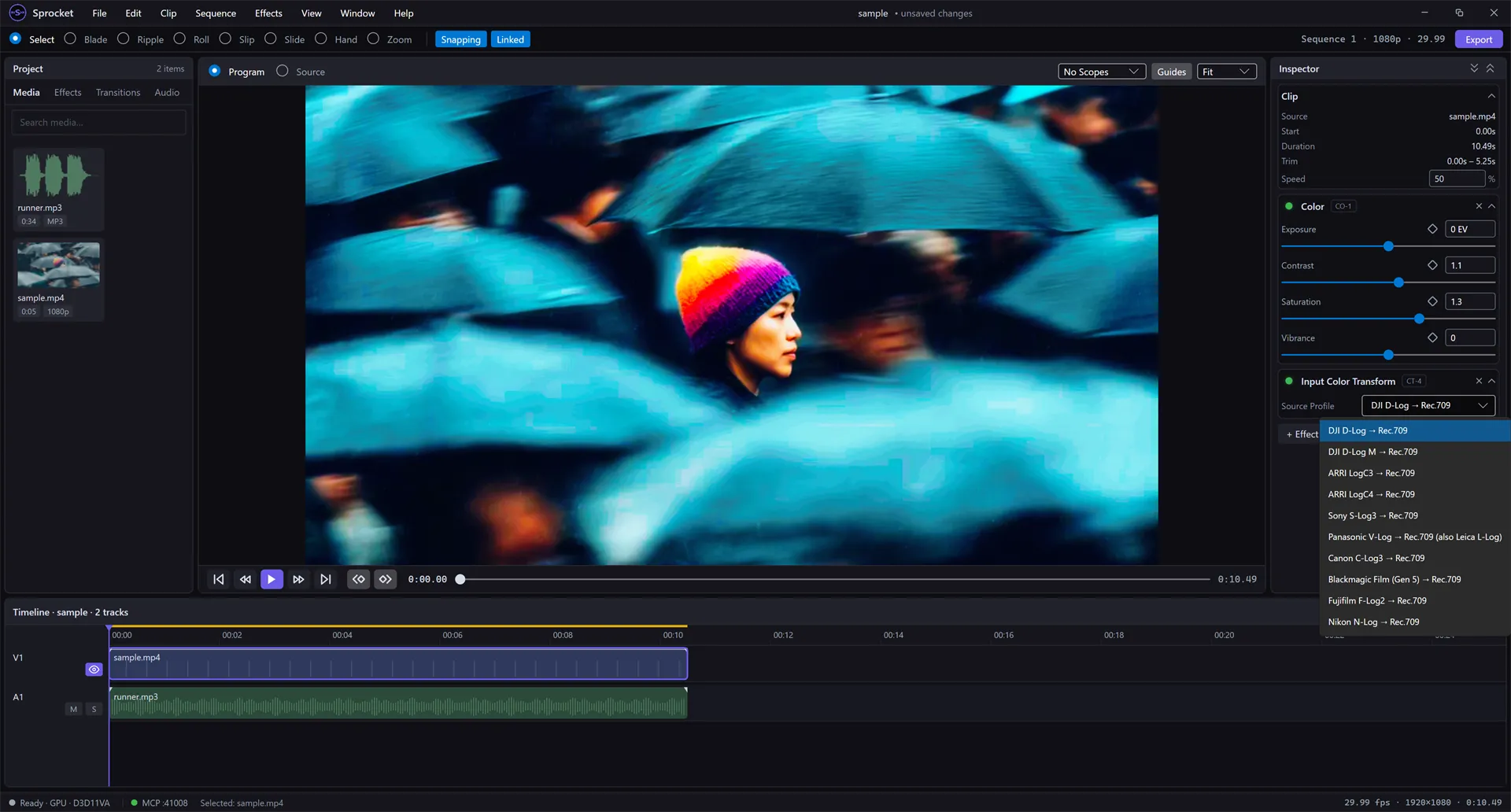
Add this effect first, before any other grading effect on the clip — grading tools like Color Wheels and Curves are designed to work on a normal image, not flat log footage.
ACES Filmic applies a filmic tone-mapping curve, which rolls off highlights more gently than a straight conversion — useful for footage with a very wide dynamic range (bright skies, strong practical lights in frame) that would otherwise clip harshly. It has a single Exposure control to set the input brightness before the curve is applied:
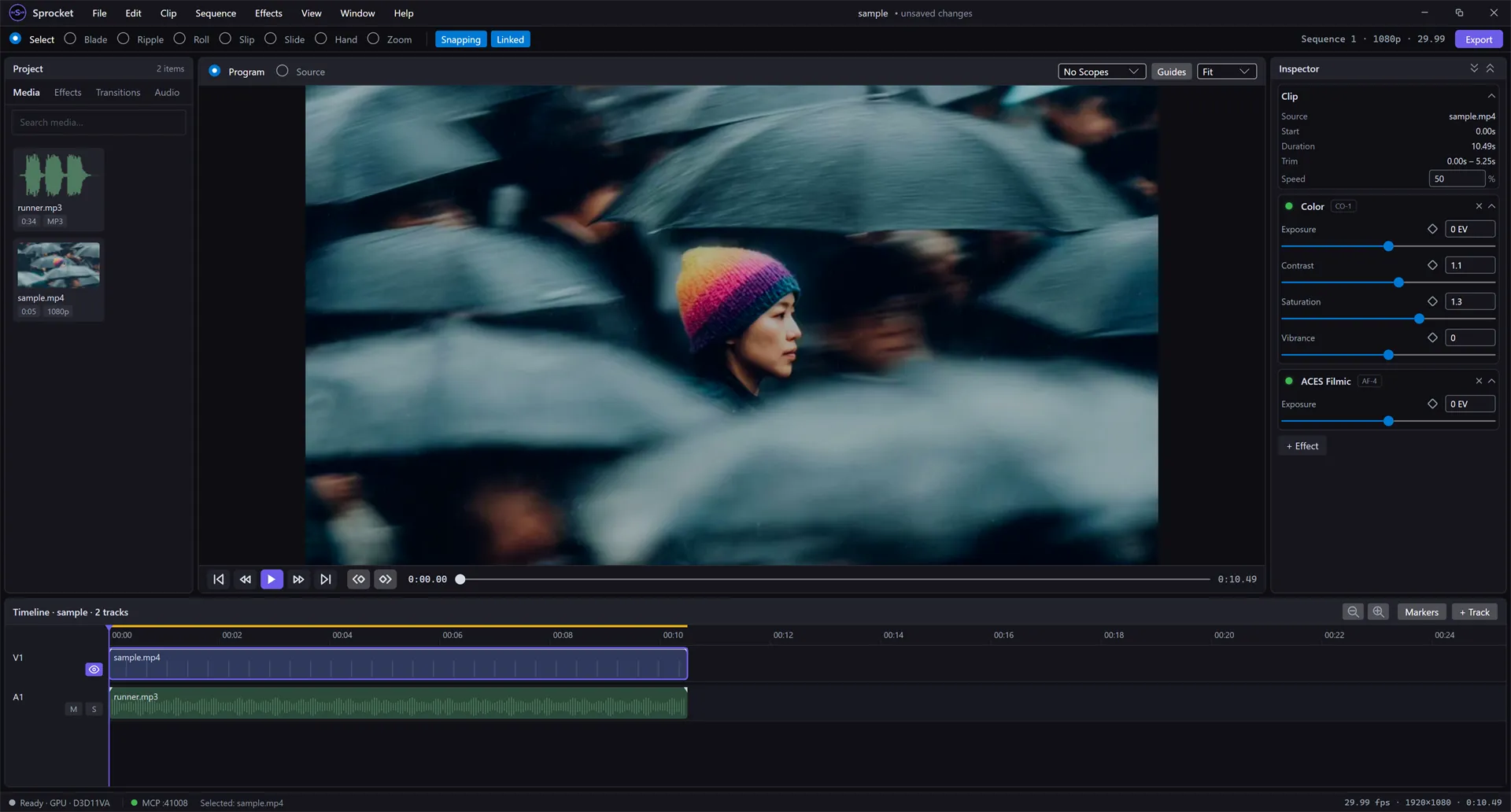
If your footage isn’t log (most phone and camera footage recorded in a standard picture profile isn’t), you don’t need either of these effects — go straight to White Balance, Color Wheels, Curves, or HSL Qualifier.
Related
Section titled “Related”- Color grading — grade the footage once it’s converted, and judge the result with scopes.